

 Français
 Deutsch
 Nederlands
How to Setup IPTV on Samsung TV: 5 Fast Steps
Learning how to setup IPTV on Samsung TV allows you to stream live television and on-demand video directly through your screen without buying an external set-top box. Samsung Smart TVs manufactured from 2015 onward run Tizen OS, a proprietary operating system that supports dedicated media players natively.
Here is how to setup IPTV on Samsung TV in short: open the Samsung download link or install IBO Player Pro from Samsung Apps, note your Device MAC and Device Key, upload your playlist in the web portal, and select Reload portal.
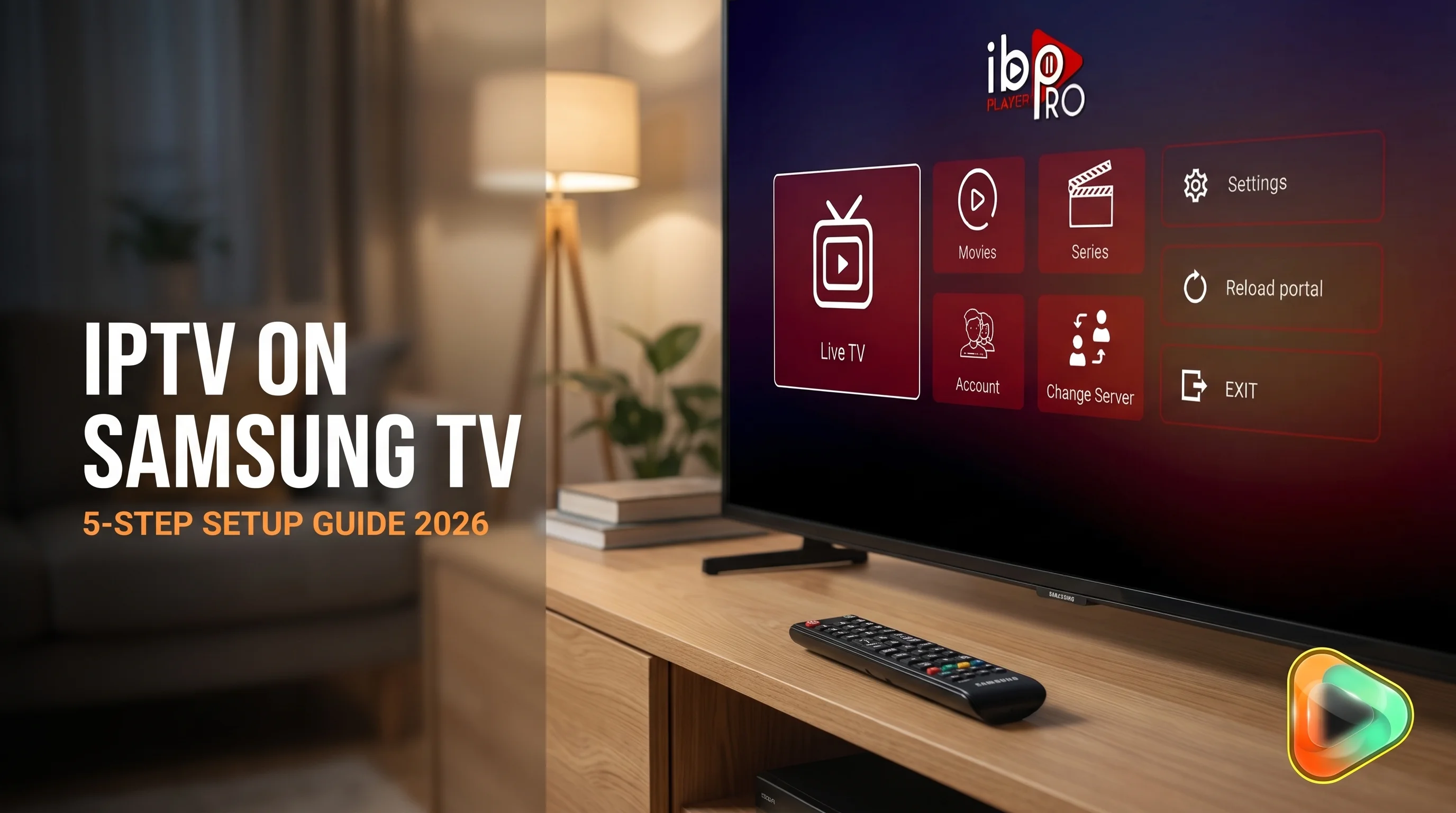
Table of Contents
Prerequisites: Before You Learn How to Setup IPTV on Samsung TV
Before beginning, check your equipment and network environment. Samsung screens do not run Android. Instead, they run Samsung Tizen OS, which means standard APK packages cannot be loaded through sideloading utilities. To stream smoothly, you need three items ready:
- A compatible Samsung Smart TV: Samsung models manufactured from 2015 onward run Tizen OS with support for modern streaming applications.
- A playlist from your provider: You need an M3U playlist link or Xtream Codes API credentials (Server URL, Username, and Password) supplied by your streaming provider.
- A stable network connection: Live high-definition streams need a steady connection. Connect your display to your router using a 5 GHz Wi-Fi band or an Ethernet cable.
Checking network requirements prevents unexpected playback stutter. Broadcasters deliver live Internet Protocol television streams continuously, so your connection must sustain constant throughput without packet loss. A steady connection matters most when your TV is on Wi-Fi. The table below shows the minimum speeds Netflix recommends for on-demand video. Live IPTV usually needs more headroom, so treat these figures as a floor:
| Stream Quality | Resolution | Minimum Download Speed |
|---|---|---|
| HD | 720p | 3 Mbps |
| Full HD | 1080p | 5 Mbps |
| 4K Ultra HD | 2160p | 15 Mbps |
Source: Netflix Help Center, internet connection speed recommendations. For live 4K channels, a connection comfortably above 15 Mbps gives you more room for busy evenings.
Step by Step: How to Set Up IBO Player Pro on Samsung TV
We recommend IBO Player Pro on Samsung screens because it shows an electronic programme guide, handles M3U and Xtream Codes playlists, and lets you manage playlists online. You never have to type long URLs using your remote control. Follow these five sequential steps to configure your display:
Step 1: Install the Player on Your Samsung Display
To install the application, open the Samsung direct download link https://shorturl.at/nAOUY and follow the instructions on that page. Alternatively, you can search for the app directly on your screen: press Home on your remote, open Apps, select the Search icon, type IBO Player, and select Install if the listing is available in your regional store. Samsung explains these steps in its guide to installing apps on a Samsung TV.
Once installed, open the player from your Home screen.
Step 2: Launch the App and Note Your Device MAC and Key
Open IBO Player Pro from your Home screen. When the app launches for the first time, an onboarding dashboard appears on screen. Note two specific values displayed in the centre panel:
- Device MAC: A twelve-character identifier shown as six pairs of letters and numbers (for example,
AA:BB:CC:DD:EE:FF). - Device Key: A six-digit numeric code (for example,
123456).
Keep this screen visible on your television. You will enter both values inside the online management portal.
Step 3: Connect Your Device MAC and Key in the Portal
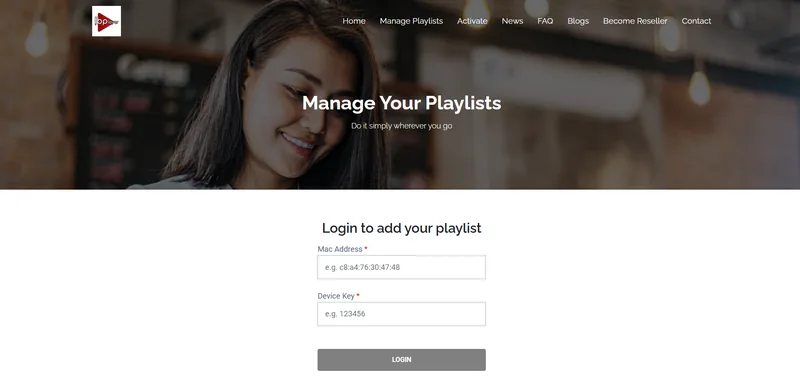
On your phone, tablet, or laptop, open your web browser and go to the official IBO Player Pro portal at https://iboplayer.pro/manage-playlists/login/. Enter your Device MAC address and Device Key exactly as displayed on your screen, then click Login.
Step 4: Upload Your Playlist to IBO Player Pro
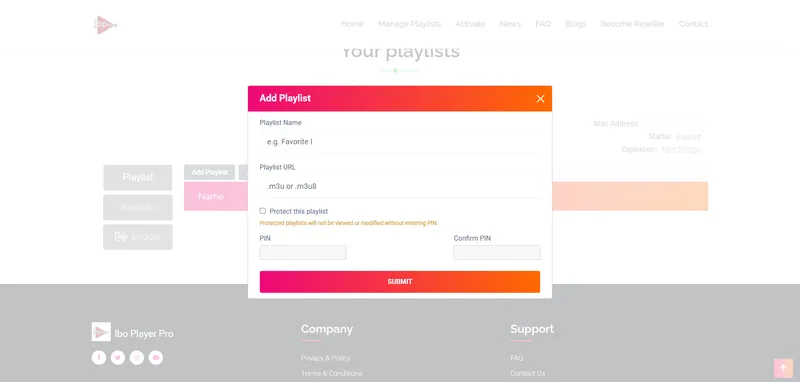
Once logged in, select Add Playlist for an M3U address, or Add XC Playlist for Xtream Codes credentials. Enter a descriptive label (for example, My Playlist). Paste your M3U URL or enter your server address (http://example.com:8080), username (demo), and password (demo), then click Submit.
Step 5: Reload the App and Synchronise Channels
Return to your Samsung TV. On the home dashboard of IBO Player Pro, select the Reload portal option and press Select on your remote. The application contacts the cloud portal, syncs your channel list, and populates your Live TV, Movies, and Series categories.
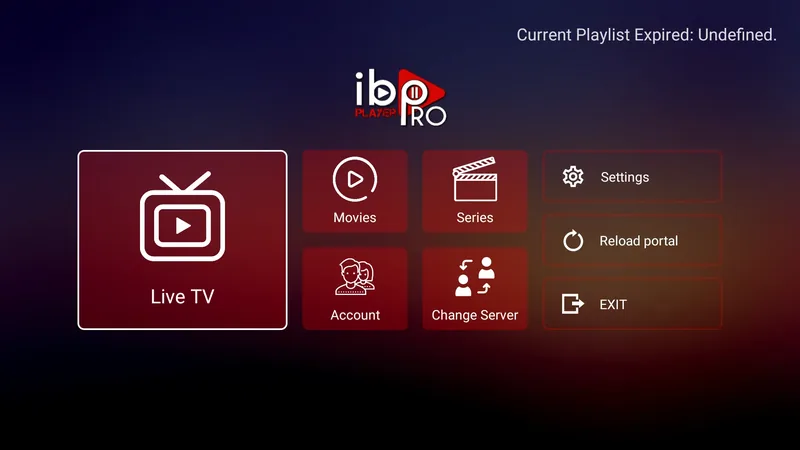
Configured this way, IBO Player Pro keeps your channel groups in sync whenever your provider updates stream links.
Watch the Official Installation Video
This video guide demonstrates the complete setup process on Samsung Smart TV and comes directly from the official IBO Player Pro YouTube channel:
You can also open the tutorial directly on YouTube: Watch the official Samsung TV installation guide on YouTube.
How to Fix IPTV Buffering on Samsung TV: 5 Fixes
When streaming live channels, users may occasionally experience stutters or audio errors. Apply these five practical fixes in order:
Fix 1: Check Connection Speed and Network Stability
Live television requires sustained bandwidth without sudden throughput dips. Test your local network speed using an independent benchmark on Speedtest through your TV browser or smartphone. An overcrowded 2.4 GHz Wi-Fi channel can cause packet drops. Connect via a physical Cat 6 Ethernet cable or switch your TV to a dedicated 5 GHz Wi-Fi band.
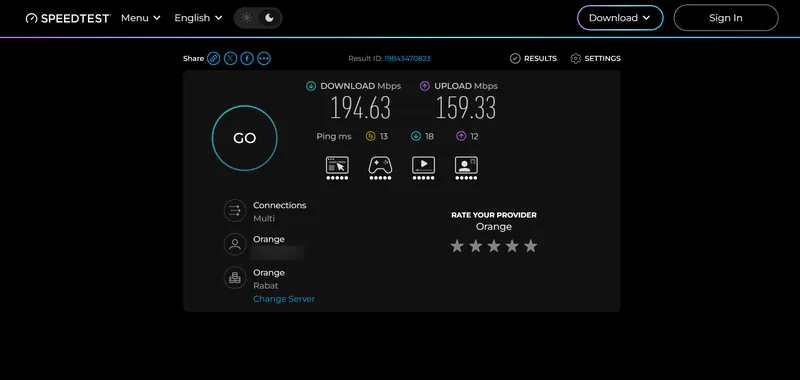
This network check is the first thing to try when IPTV buffers on your Samsung TV. A stable connection reduces stutter during busy evening hours.
Fix 2: Clear Application Cache via Device Care
As you browse multiple channel groups and video libraries, temporary data accumulates in TV memory. On recent models, open Settings > All Settings > Support > Device Care, then the Manage Storage tab. Select IBO Player Pro, then View Details to clear its cache. Menu names can vary with your TV’s model year; on some models the path starts at Settings > Support. Samsung describes Manage Storage and View Details in its Device Care guide. Clearing the cache often helps when the app starts to feel slow.
Fix 3: Change DNS Server to Google or Cloudflare
Changing DNS can help when channel lists load slowly. To configure custom DNS on Samsung TV, press Home and open Settings. Navigate to General (or Connection) > Network > Network Status. When the check finishes, select IP Settings. Change the DNS Setting toggle from Automatic to Enter Manually. Set the DNS Server field to 8.8.8.8 (Google DNS) or 1.1.1.1 (Cloudflare DNS). Select OK and restart your television. Samsung lists the same steps in its network troubleshooting guide.
Fix 4: Fix a Black Screen with Sound
If the screen stays black while you can still hear sound, your TV may not support the video format of that stream. Try a different channel and restart the app. If only some channels are affected, ask your playlist provider which video formats their streams use.
Fix 5: Perform a Cold Boot Power Cycle
Modern smart televisions enter standby mode rather than fully shutting down when you press the power button. Over time, background processes linger in RAM. To perform a cold boot, hold down the Power button on your remote until the TV turns off and on again; Samsung says this takes about 5 seconds. Without a remote, unplug the TV for 30 seconds, then plug it back in. Samsung describes both methods in its app troubleshooting guide.
Other IPTV Apps for Samsung Smart TV
While IBO Player Pro is our recommended player on Tizen, it helps to know which other IPTV apps for Samsung Smart TV exist:
- IPTV Smarters Pro: A recognisable application that accepts Xtream Codes credentials directly inside the interface. Its presence in the Samsung Apps catalogue varies by region and Tizen version, so check the listing in your regional store before you rely on it.
- External Streaming Devices: If you seek advanced features, external hardware offers flexibility. Consult our guide on how to setup IPTV on Firestick for sideloading options, or read our complete guide on how to setup IPTV on Apple TV for tvOS performance benchmarks.
Running the player directly on your Samsung TV keeps your TV cabinet tidy and means one remote fewer on the table. Your television then works as an all-in-one streaming hub.
Frequently Asked Questions
Can I install IPTV apps directly on a Samsung Tizen TV without a Firestick?
Yes. Samsung Smart TVs running Tizen OS can download approved media players such as IBO Player Pro directly on the television. You do not need an external Firestick, Apple TV, or Android box to stream directly on a supported Samsung display.
Is using an IPTV player on Samsung Smart TV legal?
Using a media player app such as IBO Player Pro is legal. Whether your streaming is legal depends on whether your playlist provider holds the broadcast licences for that content.
Why is IBO Player Pro not showing in my Samsung Apps search?
If IBO Player Pro does not appear in your regional Samsung Apps search, your television software version or regional store catalog may exclude the listing. You can use the Samsung direct download link and follow the instructions on that page, or connect an external streaming device.
Where do I find the Device MAC and Device Key on my Samsung TV?
Launch IBO Player Pro on your television. Both the Device MAC address and the Device Key appear directly on the main setup screen. Do not use the physical MAC address printed on the back panel or in the TV network settings.
What internet speed is needed for IPTV on a Samsung TV?
Netflix recommends at least 3 Mbps for 720p HD, 5 Mbps for 1080p Full HD and 15 Mbps for 4K. Live IPTV usually needs more headroom than on-demand streaming, so aim higher and connect your television with an Ethernet cable or 5 GHz Wi-Fi for the most consistent results.
Once you understand how to setup IPTV on Samsung TV, maintaining a stable stream requires only basic network hygiene and regular cache maintenance.