

 Français
 Deutsch
 Nederlands
How to Setup IPTV on Apple TV: 5 Easy Steps (2026)
Learning how to setup IPTV on Apple TV gives you a reliable viewing experience directly on your television. Apple TV hardware pairs powerful Apple silicon with tvOS to deliver smooth video playback and rapid navigation across live channels. This tvOS IPTV setup tutorial walks you through installing your media player from the App Store, pairing your playlist via MAC address, and configuring your display settings. Here is what this walkthrough covers step by step:- Finding the best IPTV app for Apple TV to ensure responsive navigation and reliable playback.
- How to install IBO Player Pro on Apple TV directly through the official tvOS App Store.
- Applying key video and network tweaks to fix IPTV buffering on Apple TV during live events.
Table of Contents
Prerequisites: What You Need Before You Start
Preparing your equipment beforehand ensures a quick, frustration-free setup. Having these essentials ready allows you to complete configuration in under ten minutes.- Compatible Apple TV: An Apple TV 4K or Apple TV HD running tvOS 14.0 or newer.
- Apple ID: An active Apple account signed into your device to download apps from the App Store.
- Stable Internet: A download speed of 25 Mbps for Full HD streams, or 50 Mbps for 4K live broadcasts.
- Playlist Information: A valid M3U playlist URL or Xtream Codes API credentials from your chosen provider.
- Secondary Device: A smartphone, tablet, or laptop to access the web portal for playlist registration.
App Store Advantage: Because IBO Player Pro is distributed through the official Apple App Store, updates install automatically in the background when automatic app updates are enabled in tvOS settings.
Step 1: Open the tvOS App Store
The App Store is your starting point when discovering how to setup IPTV on Apple TV. Power on your television and wake your device using your Siri Remote. From the tvOS home screen, navigate to and open the blue App Store icon. If you have not already signed into your Apple ID, go to Settings > Users and Accounts to ensure your account is active.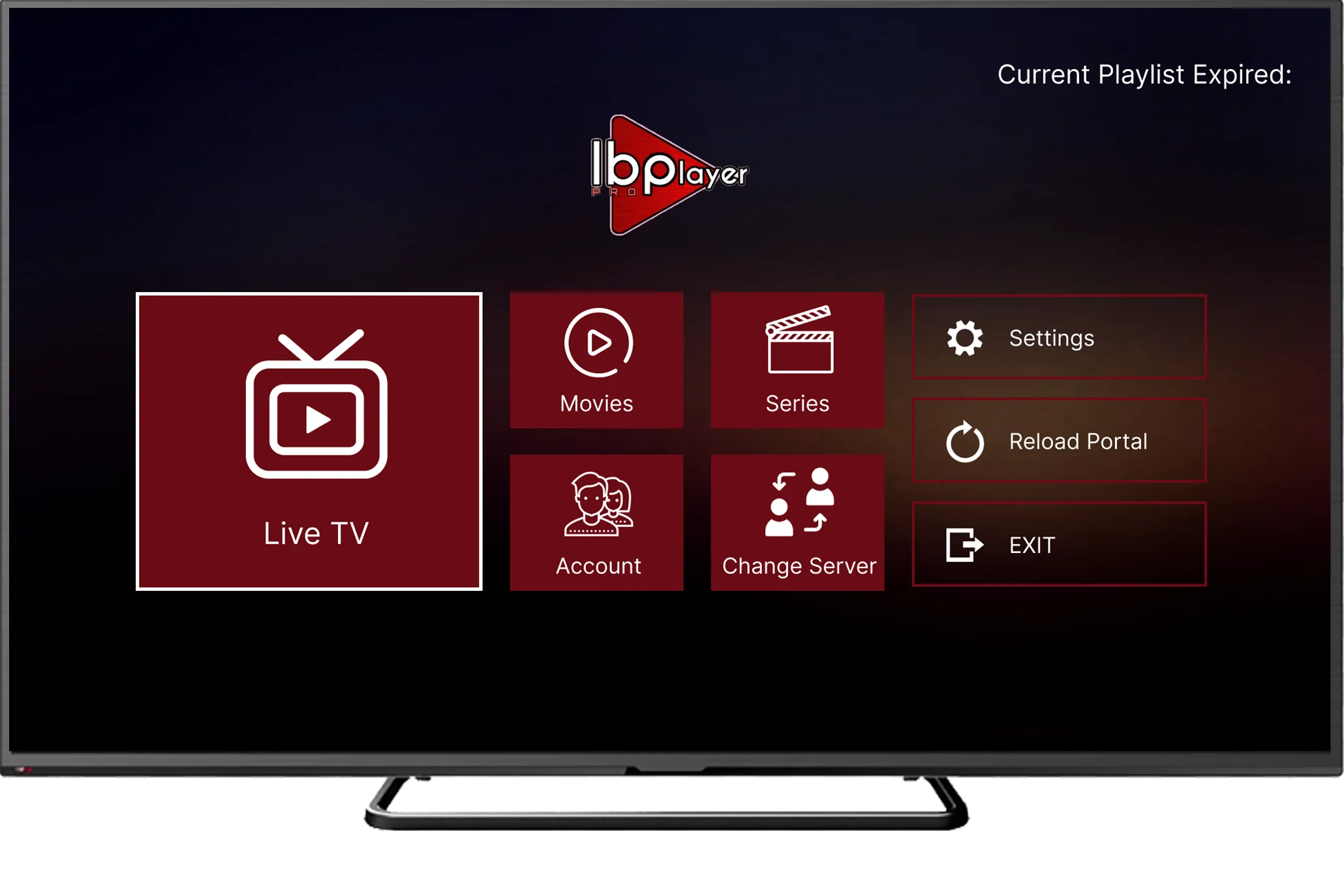
Step 2: Install IBO Player Pro on Apple TV
To install IBO Player Pro on Apple TV, navigate to the Search tab in the top navigation bar of the App Store. Use your Siri Remote to speak the app name or typeIBO Player Pro using the on-screen keyboard.
Select the application from the search results to open its product page.
Click the Get or download icon. tvOS will download and install the application automatically.
Why Choose the Best IPTV App for Apple TV
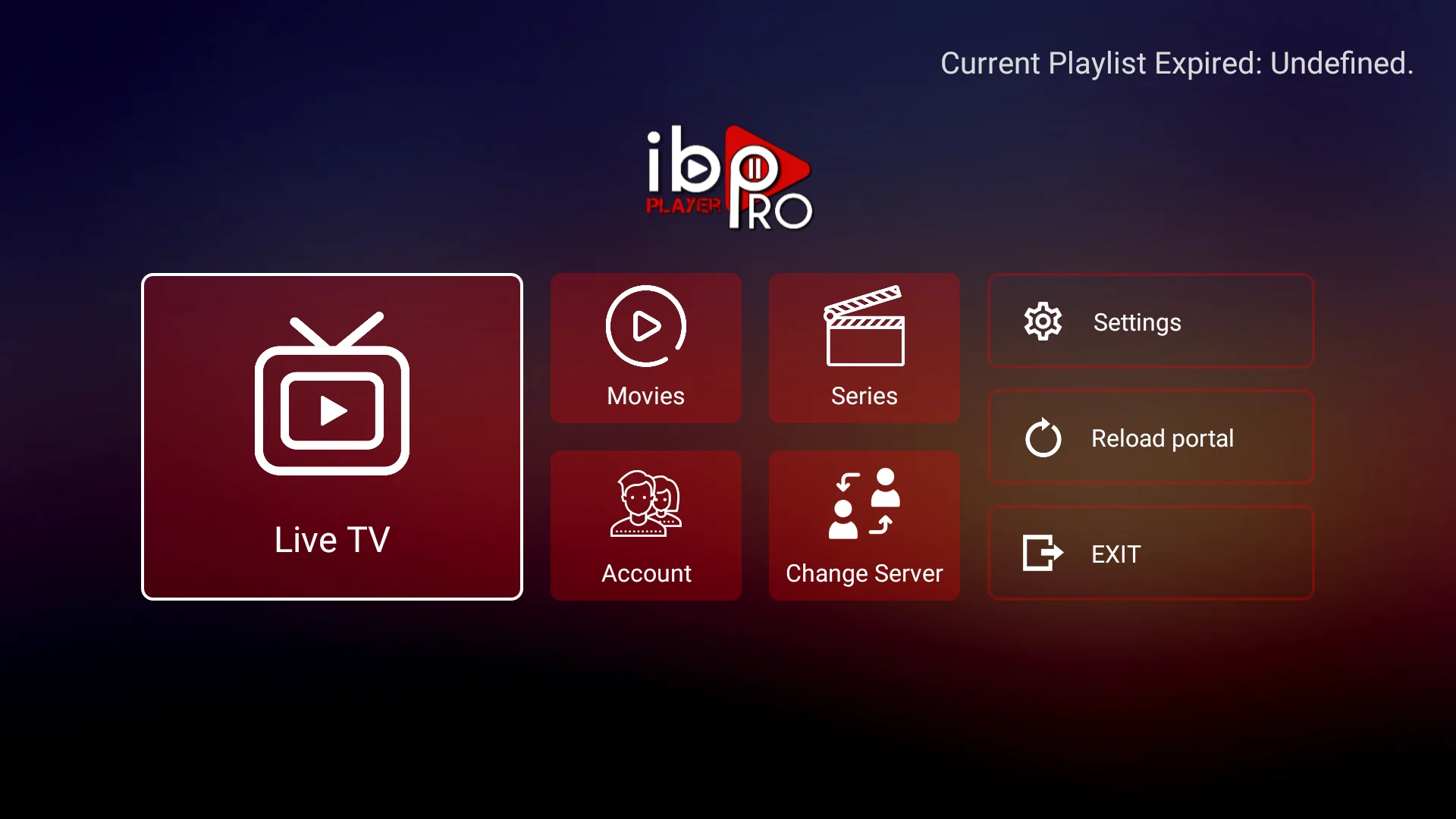
When selecting the best IPTV app for Apple TV, IBO Player Pro stands out for its responsive interface, electronic programme guide (EPG) support, and clean layout. The application supports multiple playlists, category filtering, and subtitle track selection. In everyday use, IBO Player Pro offers a fast, stable interface that complements the performance of Apple hardware.Step 3: Retrieve Your Device MAC and Device Key
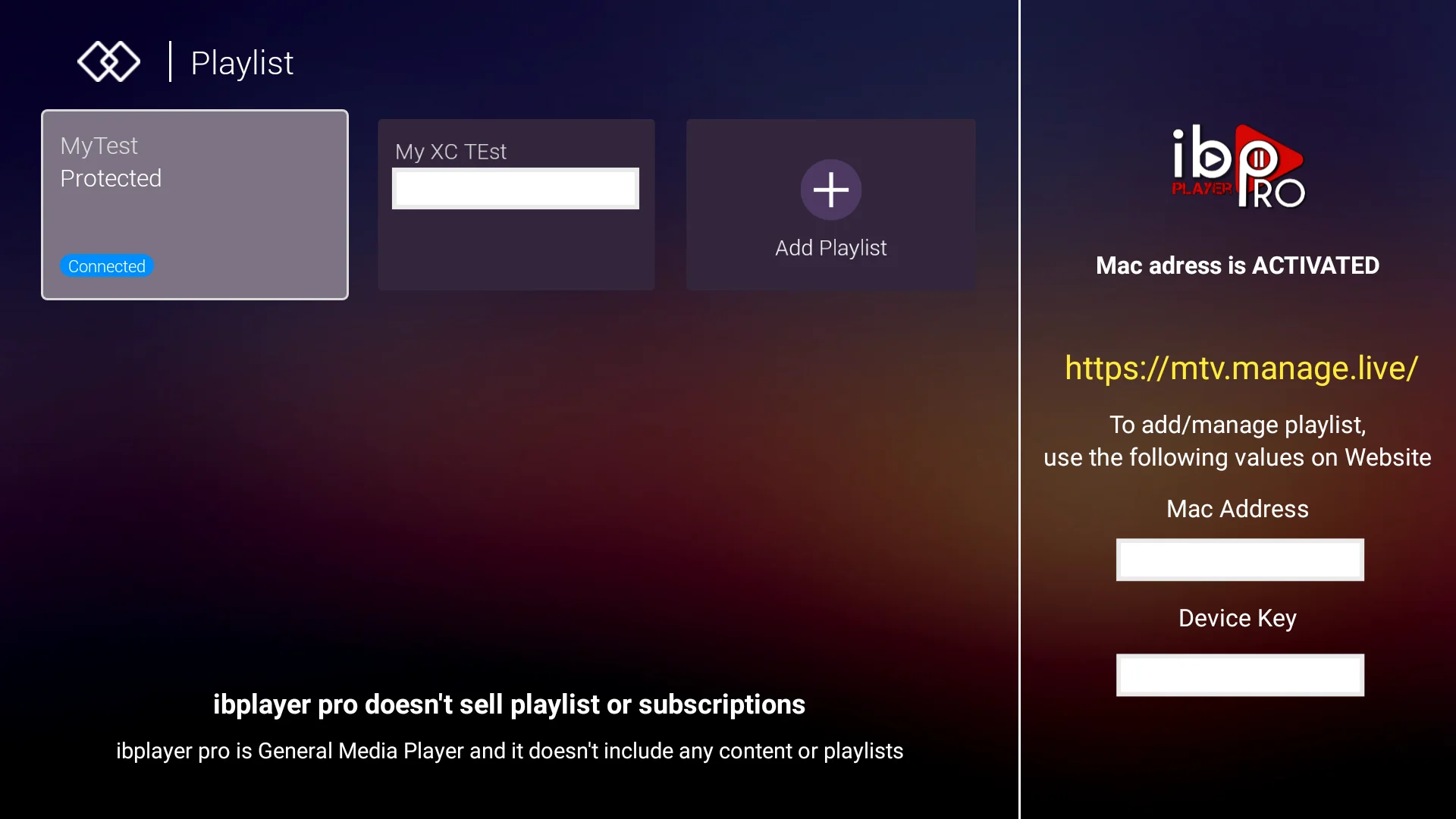
During this stage of how to setup IPTV on Apple TV, you retrieve your device identifiers. Once installation finishes, select Open from the App Store page, or launch IBO Player Pro from your tvOS home screen grid. When the app opens for the first time, the welcome screen displays two unique identifiers assigned to your Apple TV:- Device MAC: A twelve-character hardware address, formatted such as
AA:BB:CC:11:22:33. - Device Key: A six-digit numeric security code, such as
123456.
Step 4: tvOS IPTV Setup Tutorial for Playlist Activation
Connecting your playlist is a core stage of how to setup IPTV on Apple TV. Grab your smartphone, tablet, or laptop and open a web browser. Navigate to the official IBO Player Playlist Management Portal.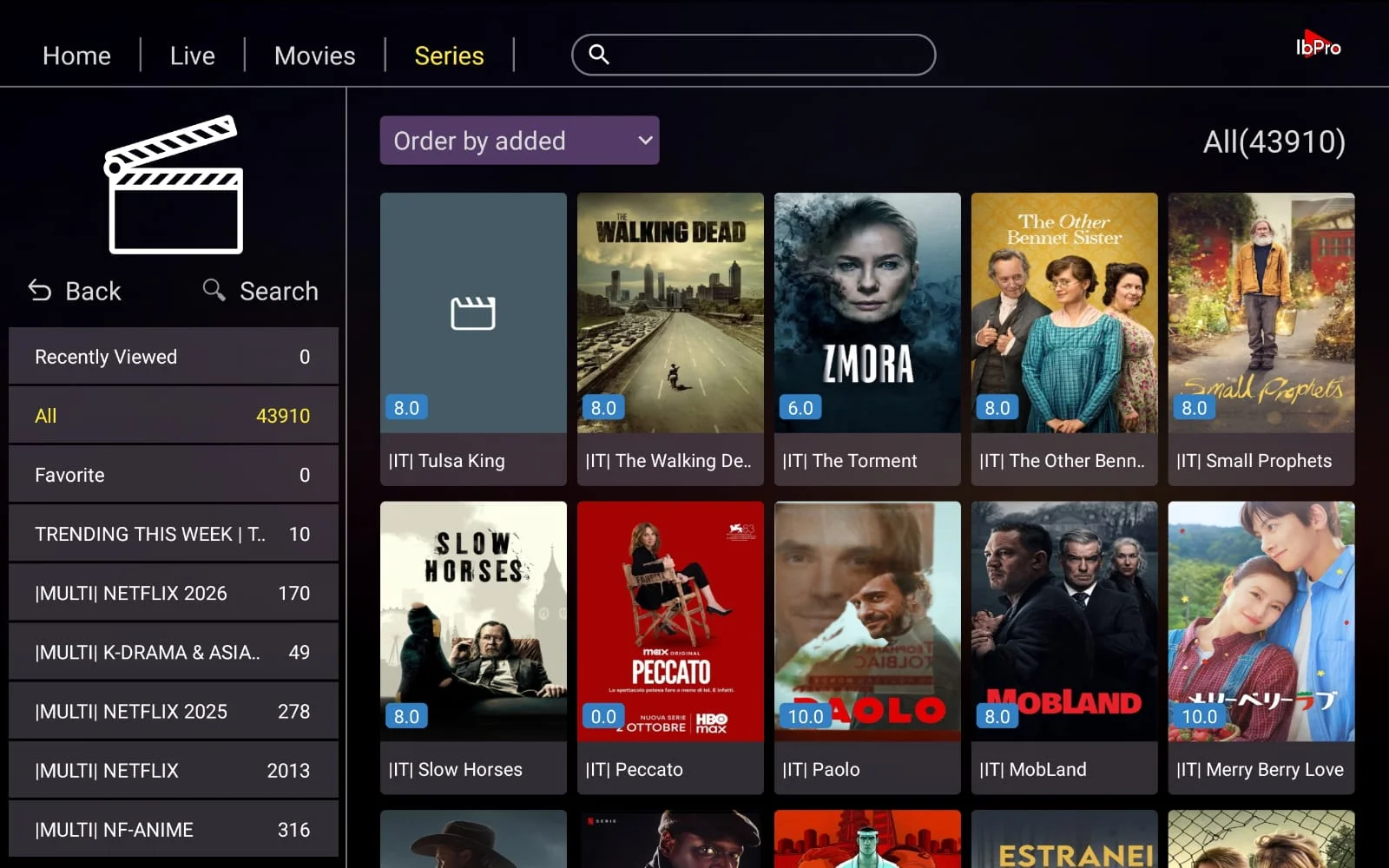
- Type your Device MAC into the first input box.
- Enter your six-digit Device Key into the second box.
- Click Login to enter your account screen.
- Select Add Playlist for M3U links, or choose Add XC Playlist for Xtream Codes logins.
- Assign a clear label in the Playlist Name field, such as My Playlist.
- Paste your M3U URL or enter your server address, username, and password.
- Click Save to confirm your playlist details.
Step 5: Fix IPTV Buffering on Apple TV: Network and Video Settings
Learning how to setup IPTV on Apple TV also involves fine-tuning your video and network options. To fix IPTV buffering on Apple TV, you need to address network stability, Wi-Fi interference, and video decoding settings. While Apple TV provides exceptional processing power, network congestion or mismatched refresh rates can cause stream freezing or motion judder. Here is how to configure your system for smooth playback.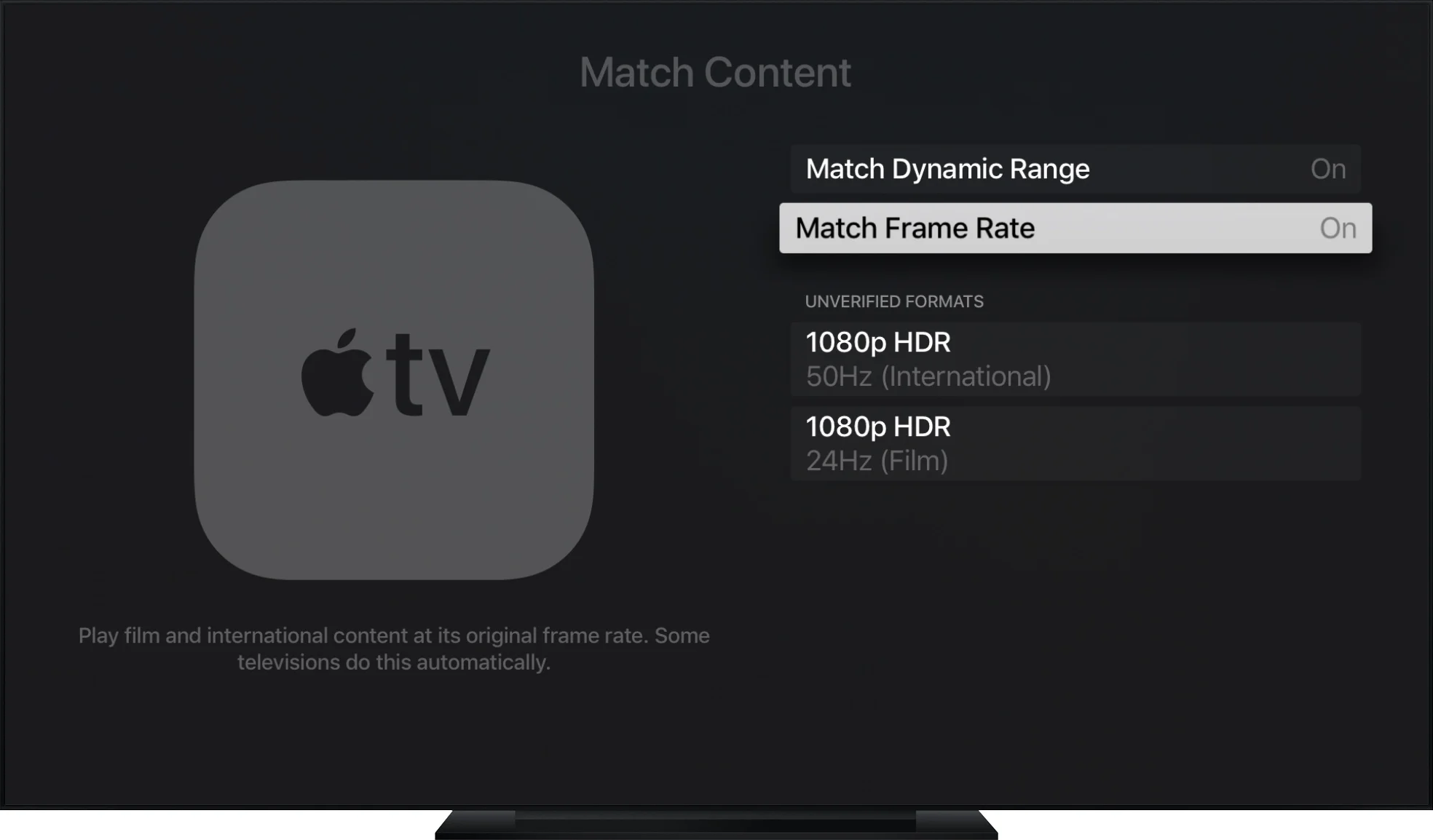
1. Enable Match Frame Rate and Match Range
European television feeds typically broadcast at 50Hz, while North American channels stream at 60Hz. Movies and series frequently use 24Hz film frame rates. When tvOS forces all video into a single fixed output rate, visible judder and micro-stutter can appear on fast sports motion. Match Content solves this problem directly. Open Settings > Video and Audio > Match Content on your Apple TV. Turn both Match Range and Match Frame Rate to On. Your television screen may briefly flicker when a stream starts. This is normal behaviour as your TV adjusts its panel refresh rate to mirror the broadcast source.2. Connect an Ethernet Cable Where Supported
If your Apple TV model includes an Ethernet port, connect a direct Ethernet cable to your router. A wired connection eliminates local wireless congestion and packet drops. If your Apple TV is a Wi-Fi-only model, connect to your router’s 5 GHz band. Avoid crowded 2.4 GHz networks that suffer interference from household electronics.3. Test Your Broadband Speed
Measure your real-time broadband throughput using Speedtest by Ookla from the tvOS App Store. Ensure you have at least 25 Mbps of download throughput for Full HD channels and 50 Mbps for live 4K streams.4. Switch Video Engine in Player Settings
If a specific stream shows a black screen while playing audio, the default video decoder may have encountered an unfamiliar stream container. In IBO Player Pro settings, navigate to Player Settings and switch the video player engine from Native to VLC Player.Apple TV Hardware Models Comparison Table
Apple has produced multiple generations of television hardware. This comparison outlines how different models handle live streaming feeds:| Apple TV Model | Processor | Networking Options | Maximum Resolution | Recommended Speed |
|---|---|---|---|---|
| Apple TV 4K (3rd Gen, 128GB) | A15 Bionic | Gigabit Ethernet & Wi-Fi 6 | 4K HDR10+ & Dolby Vision 60fps | 35 – 50+ Mbps |
| Apple TV 4K (3rd Gen, 64GB) | A15 Bionic | Wi-Fi 6 (No Ethernet) | 4K HDR10+ & Dolby Vision 60fps | 35 – 50+ Mbps |
| Apple TV 4K (2nd Gen) | A12 Bionic | Gigabit Ethernet & Wi-Fi 6 | 4K Dolby Vision 60fps | 30 – 45 Mbps |
| Apple TV 4K (1st Gen) | A10X Fusion | Gigabit Ethernet & Wi-Fi 5 | 4K Dolby Vision 60fps | 25 – 40 Mbps |
| Apple TV HD (4th Gen) | A8 | 10/100 Ethernet & Wi-Fi 5 | Full HD 1080p 60fps | 15 – 25 Mbps |
IBO Player Pro on Other Household Devices
Now that you know how to setup IPTV on Apple TV, you can configure the same player interface on other screens in your home using these direct official downloads:- Amazon Firestick & Fire TV: Read our complete guide on how to setup IPTV on Firestick.
- Samsung Smart TVs: Fetch the application directly through the official Samsung TV App Store.
- LG webOS Smart TVs: Download the player from the official LG Content Store.
- Windows Computers: Download the desktop application from the IBO Player Desktop Portal.
- Roku Devices: Add the channel directly from the Roku Channel Store.