
 Français
 Deutsch
 Nederlands
How to setup IPTV on Firestick: 5 Clear Steps
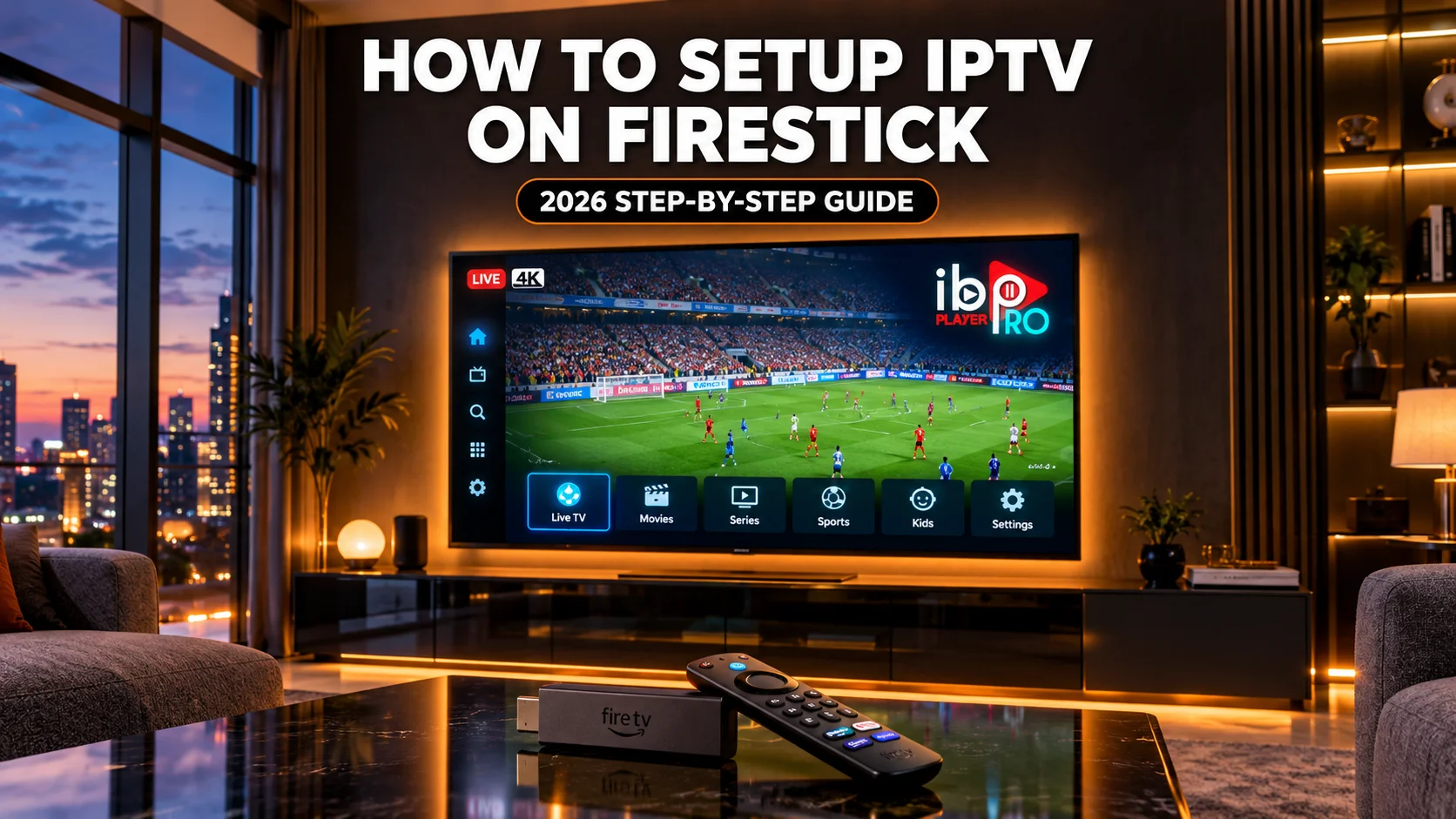
Learning how to setup IPTV on Firestick allows you to turn your Amazon streaming device into a reliable media hub. Connecting a private playlist to a dedicated player provides full control over your television viewing without extra set-top boxes.
The underlying system relies on Internet Protocol television technology. Unlike satellite dishes or aerial antennas, this digital protocol delivers broadcasts across your home broadband.
Quick Summary: Here is how to setup IPTV on Firestick in five clear stages on a Fire OS stick (these steps do not work on Vega OS). Unhide Developer Options by clicking your device name seven times under Settings > My Fire TV > About. Next, open Downloader, enter quick code 481220 to install IBO Player Pro, register your playlist on the official portal, and reload the application on your television screen.
Fire OS and Vega OS Compatibility for Firestick
Before configuring software, confirm which operating system your Amazon device uses. Traditional Fire TV devices run Fire OS, based on Android. Fire OS supports Android application packages (APK files), allowing you to install media players using tools like Downloader.
Newer Amazon sticks run Vega OS, a different operating system that is not based on Android. Amazon’s own Fire TV device list shows which models run Vega OS and which run Fire OS; the table below lists the main sticks. Cord Busters and AFTVnews report that Amazon plans to use Vega on its new sticks from now on.
This matters if you want IPTV on a Firestick with Vega OS. Vega OS cannot install Android APK files, so Downloader and the code 481220 do not work on it; everyday users install apps on Vega devices from the Amazon Appstore. Vega does have a Developer Mode, but it is meant for app developers with an Amazon Developer Account and only installs Vega app packages, not Android APKs. Check your model under Settings > My Fire TV > About before attempting to sideload.
| Device Model | Operating System | Android APK Sideloading | Application Installation Source |
|---|---|---|---|
| Fire TV Stick 4K Max – 2nd Gen (2023) | Fire OS 8 | Supported | Amazon Appstore & Downloader APK |
| Fire TV Stick 4K – 2nd Gen (2023) | Fire OS 8 | Supported | Amazon Appstore & Downloader APK |
| Fire TV Stick 4K Plus (2025) | Fire OS 8 | Supported | Amazon Appstore & Downloader APK |
| Fire TV Stick HD (2024) | Fire OS 7 | Supported | Amazon Appstore & Downloader APK |
| Fire TV Stick – 3rd Gen (2020) | Fire OS 7 | Supported | Amazon Appstore & Downloader APK |
| Fire TV Stick 4K Select (2025) | Vega OS | Not supported | Amazon Appstore (consumer apps); Vega developer tools (developer testing only) |
| Fire TV Stick HD (2026) | Vega OS | Not supported | Amazon Appstore (consumer apps); Vega developer tools (developer testing only) |
| Fire TV Stick 4K – 3rd Gen (2026) | Vega OS | Not supported | Amazon Appstore (consumer apps); Vega developer tools (developer testing only) |
Source for models and operating systems: Amazon Fire OS overview. Two sticks can share a name (for example Fire TV Stick HD from 2024 and from 2026), so check the year on the box or in your Amazon order.
Table of Contents
- Fire OS and Vega OS Compatibility for Firestick
- Step-by-Step Guide: How to Setup IPTV on Firestick
- Watch the Official Firestick Installation Video
- Alternative Player Option: IPTV Smarters Pro
- Internet Speed and Bandwidth Requirements for Firestick
- Fixing IPTV on Firestick When Playback Keeps Buffering
- Using Your Playlist on Other Smart Devices
- Frequently Asked Questions
Step-by-Step Guide: How to Setup IPTV on Firestick
For Fire OS devices, setting up IBO Player Pro takes five structured stages. This player provides responsive menus, fast category navigation, and simple web portal management.
Step 1: Reveal Developer Options on Your Firestick
Recent Fire OS builds hide Developer Options by default. Unhiding this menu is necessary before you can install third-party player applications.
- Open Settings from your Fire TV home screen.
- Select My Fire TV.
- Click on About.
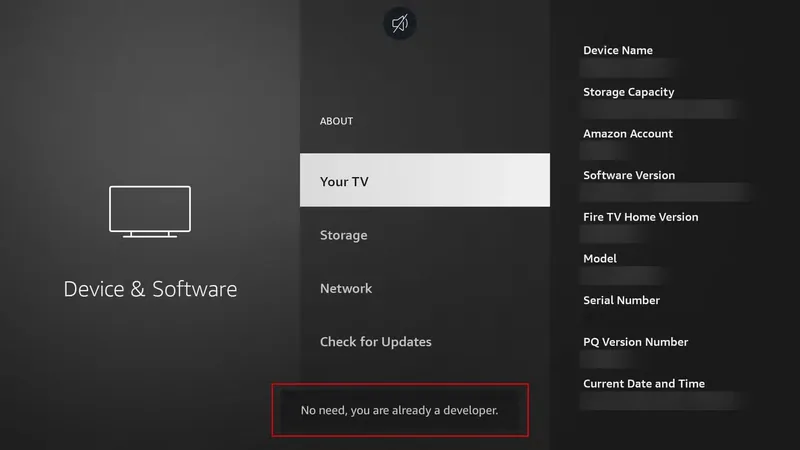
- Highlight your device name and press the remote Select button seven times consecutively.
- A notification appears at the bottom: “No need, you are already a developer.”
- Press Back once to find Developer Options listed under the About entry.
Step 2: Install Downloader and Authorise Unknown Apps
With developer permissions active, install Downloader from the Amazon Appstore to retrieve your player APK.
- Go to Find and select Search on your Fire TV dashboard.
- Type Downloader using the on-screen keyboard.
- Select the orange Downloader icon and click Get or Download.
- Once installed, open Settings > My Fire TV > Developer Options.
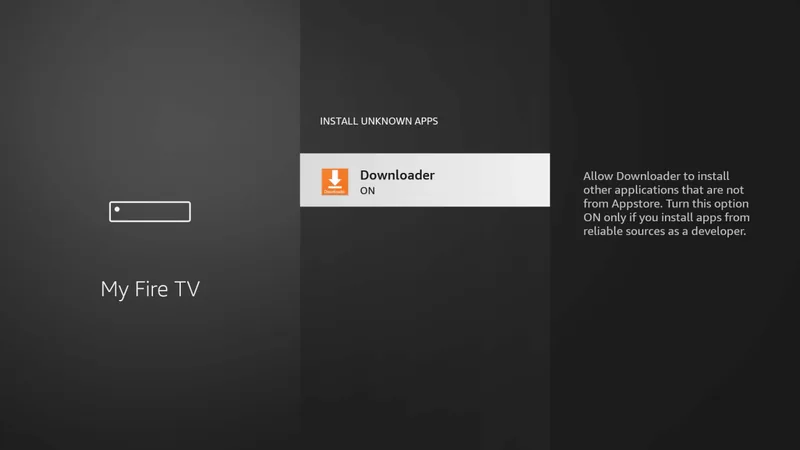
- Select Install unknown apps (or Apps from Unknown Sources on earlier builds).
- Find Downloader in the list and toggle the switch to ON.
Step 3: Download and Install IBO Player Pro
Now you can download the application package directly to your streaming stick.
- Open Downloader from your apps screen and click Allow on storage prompts.
- Click the URL box on the Home tab and enter quick code 481220, or the link https://iboproapp.com/ibopro.apk.
- Click Go to fetch the APK file.
- Select Install in the setup window.
- Click Done, then select Delete twice to remove the temporary APK file and preserve device storage.
Sideloaded applications do not update automatically through the Amazon Appstore. If a new version is released, repeat this Downloader procedure to install the updated APK.
Step 4: Connect Your Playlist via the Web Portal
IBO Player Pro uses remote playlist activation, so you never have to type long stream links with a TV remote.
- Launch IBO Player Pro from your apps menu.
- Note the credentials shown on screen: your Device MAC (such as AA:BB:CC:DD:EE:FF) and Device Key (such as 123456).
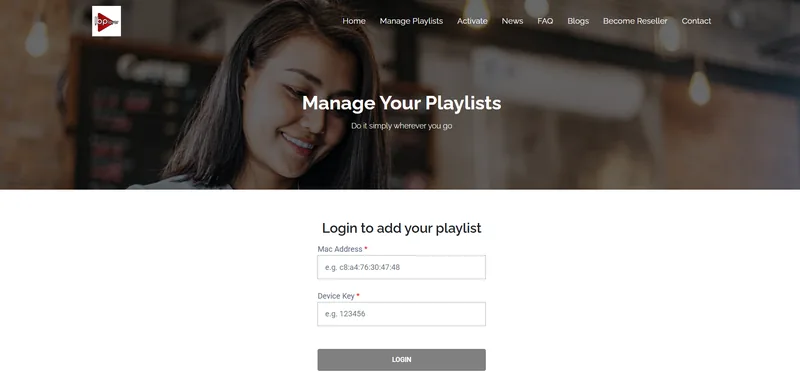
- Open a browser on your phone or laptop and visit the IBO Player Pro Playlist Management Portal.
- Enter your Device MAC and Device Key, then click Login.
- Click Add Playlist for an M3U link, or Add XC Playlist for Xtream Codes details.
- Type a name such as “My Playlist”, enter your provider’s details and click Submit.
Step 5: Reload Your Channels and Programme Guide
Once your playlist details are saved online, sync your TV to retrieve the live channels.
- Return to your TV screen and open IBO Player Pro.
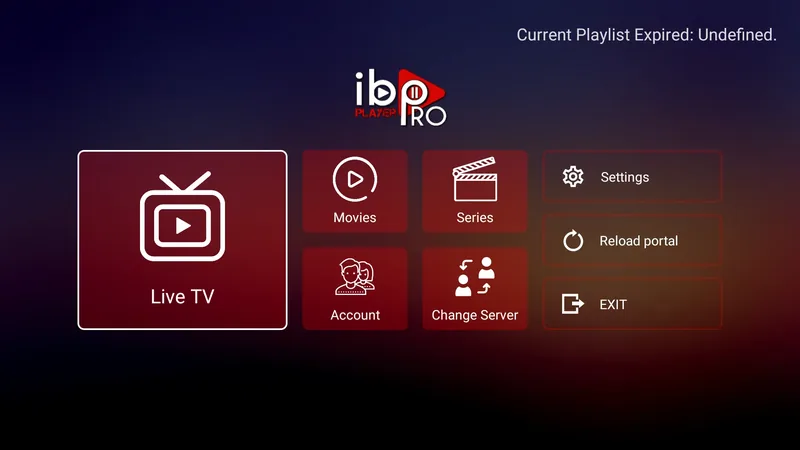
- Select Reload portal on the main menu.
- The app loads your channel categories, VOD sections, and electronic programme guide.
Watch the Official Firestick Installation Video
This video tutorial demonstrates the complete installation steps on an Amazon Fire TV Stick, created by the official IBO Player Pro channel.
Watch the video directly on YouTube at https://www.youtube.com/watch?v=PNijvKldT2Q.
Alternative Player Option: IPTV Smarters Pro
If you prefer an alternative APK player that accepts login details directly inside the application, IPTV Smarters Pro is available for Fire OS devices via Uptodown at https://iptv-smarters-pro.en.uptodown.com/android.
Uptodown is an independent third-party APK hosting platform, not an official brand store. Always review third-party APK packages carefully before installation. Install the file using Downloader, launch the application, and choose Xtream Codes API or M3U Playlist to enter your credentials on screen.
Internet Speed and Bandwidth Requirements for Firestick
Stable video playback requires continuous internet throughput. Live IPTV broadcasts transmit continuous data streams, so momentary bandwidth drops produce buffering or skipped frames.
According to the official Netflix Help Center, recommended minimum download speeds are 3 Mbps for standard high definition (720p), 5 Mbps for Full HD (1080p), and 15 Mbps for 4K Ultra HD. Live broadcasts benefit from stable headroom above these baselines. Check your connection bandwidth using Speedtest.
| Stream Resolution | Minimum Download Speed | Recommended Connection Type | Reference Standard |
|---|---|---|---|
| High Definition (720p) | 3 Mbps | 2.4 GHz / 5 GHz Wi-Fi | Netflix Help Center |
| Full HD (1080p) | 5 Mbps | 5 GHz Wi-Fi or Ethernet | Netflix Help Center |
| 4K Ultra HD (2160p) | 15 Mbps | 5 GHz Wi-Fi or Wired Ethernet | Netflix Help Center |
Fixing IPTV on Firestick When Playback Keeps Buffering
When iptv on firestick keeps buffering during live streams, network congestion or background cache buildup is usually responsible. Follow these practical fixes in order.
1. Connect to the 5 GHz Wi-Fi Frequency
Standard 2.4 GHz frequencies face interference from household appliances and neighbouring routers. Connecting your Fire TV Stick to your router’s 5 GHz band expands available bandwidth. For long distances from your router, an Amazon Ethernet adapter delivers a reliable wired connection.
2. Power Cycle Your Fire TV Hardware
Streaming hardware running for long periods accumulates background data that consumes operating memory. Unplug the power cable from your Fire TV Stick or wall socket. Leave it disconnected for at least 30 seconds before plugging it back in to restart system processes cleanly.
3. What to Do When IPTV on Firestick Keeps Freezing
When iptv on firestick keeps freezing during playback, clearing the app’s cache can help. Unlike Clear Data, it does not reset the app.
- Open Settings from your Fire TV home menu.
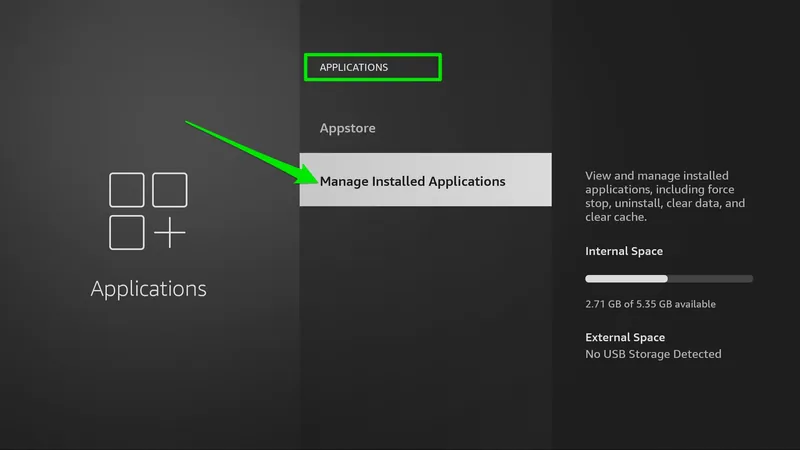
- Select Applications, then click Manage Installed Applications.
- Select IBO Player Pro from the list.
- Click Clear Cache. Avoid clicking Clear Data unless you want to reset the app completely.
4. Investigate Playlist Server Routing
If buffering continues even when Speedtest shows a good speed, the bottleneck may stem from your provider’s stream delivery or local broadband routing. Some providers manage video traffic during peak evening hours. Contact your playlist provider’s help desk for recommended streaming settings.
Using Your Playlist on Other Smart Devices
IBO Player Pro operates across multiple television platforms. If you have Samsung smart displays in other rooms, read our guide on how to setup IPTV on Samsung TV to install the player directly from Samsung Apps without sideloading.
Frequently Asked Questions
Why is my IPTV on Firestick not working?
Playback failures usually stem from incorrect playlist credentials, an expired M3U link, or network communication blocks. Double-check your Device MAC and Device Key in the management portal. If credentials are correct, restart your router and power cycle your Fire TV Stick by disconnecting the power cable for 30 seconds.
Why is my IPTV lagging on Firestick?
Interface and stream lag typically occurs when the 2.4 GHz Wi-Fi frequency experiences local radio interference, or when background applications consume available device memory. Connect your Firestick to a 5 GHz Wi-Fi network, clear the application cache in Settings, and check that your speed reaches at least the 5 Mbps Netflix recommends for Full HD; live streams may need more.
How to fix IPTV buffering on Firestick?
To reduce buffering during live broadcasts, connect to the 5 GHz Wi-Fi band or use an Ethernet adapter. Clear the application cache from the Fire TV Applications menu, check with Speedtest that you have at least the 15 Mbps Netflix recommends for 4K (live streams may need more), and reboot your Firestick to refresh background system processes.
Can I install IPTV on Firestick devices running Vega OS?
Sticks running Amazon Vega OS (the 4K Select, the HD from 2026 and the 4K – 3rd Gen) cannot install Android APK files, so Downloader does not work on them. On those models, install a compatible player from the Amazon Appstore if one is available in your region.
Is it legal to use IPTV on Firestick?
Using a media player app such as IBO Player Pro is legal. Whether your streaming is legal depends on whether your playlist provider holds the broadcast licences for that content.
With your media player configured and your playlist synced, you now know how to setup IPTV on Firestick for everyday viewing. Maintaining your device cache, selecting the 5 GHz Wi-Fi frequency, and keeping your application up to date helps maintain consistent streaming across your favourite television channels.